How to use a nurse Shift Schedule app|Emojis · Attendance · Shift Statistics · Fonts · Screen customization
To use a nurse shift schedule app more conveniently, explore not only work dates but also time-off and overtime records, monthly Shift Statistics, personal schedule display, and easy-to-read calendar settings. This guide introduces five ShiftMate features with real screens and examples.
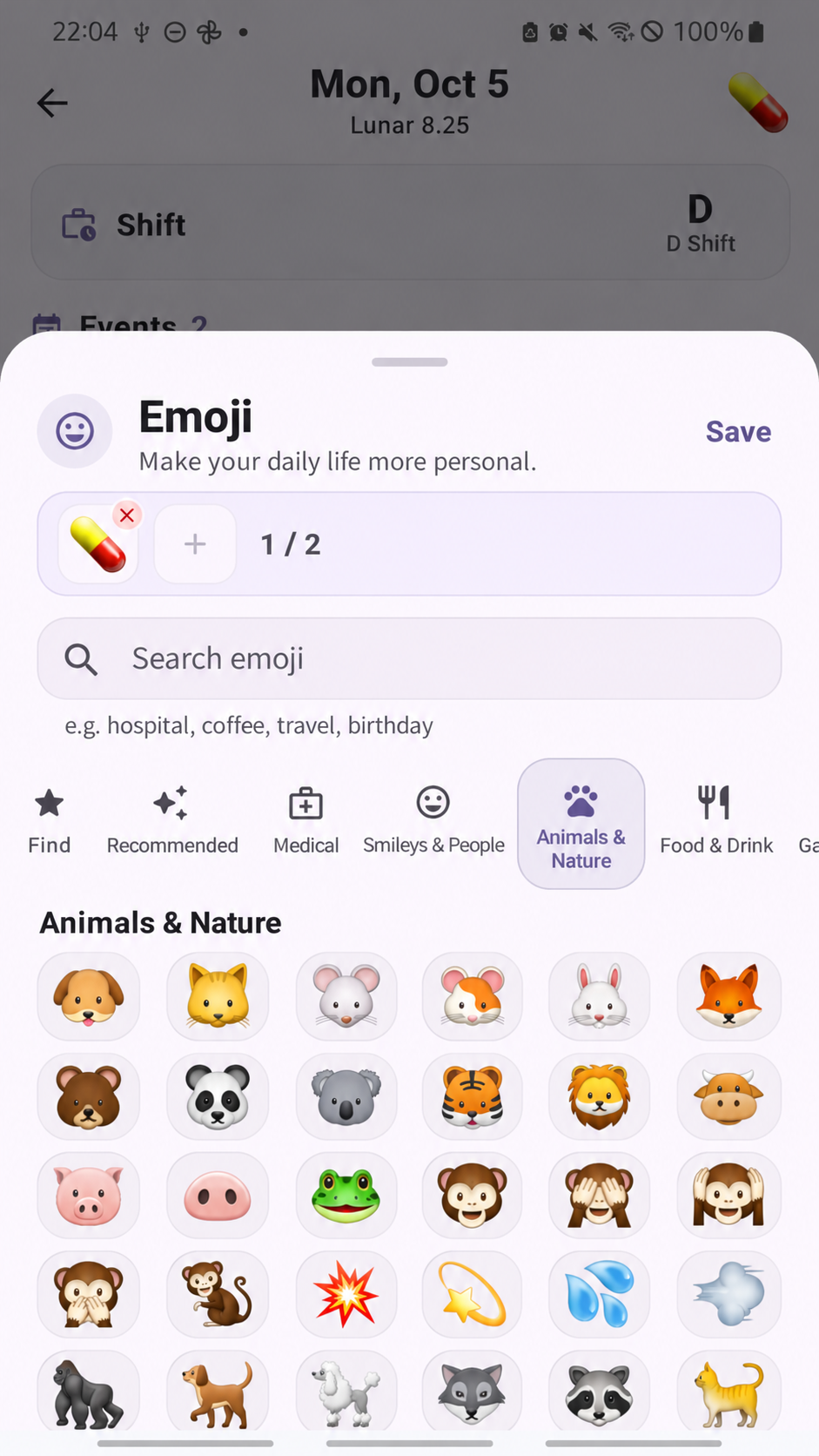
1. Mark dates with emojis
Add up to two emojis per day, then choose the markers you need by category or through search.
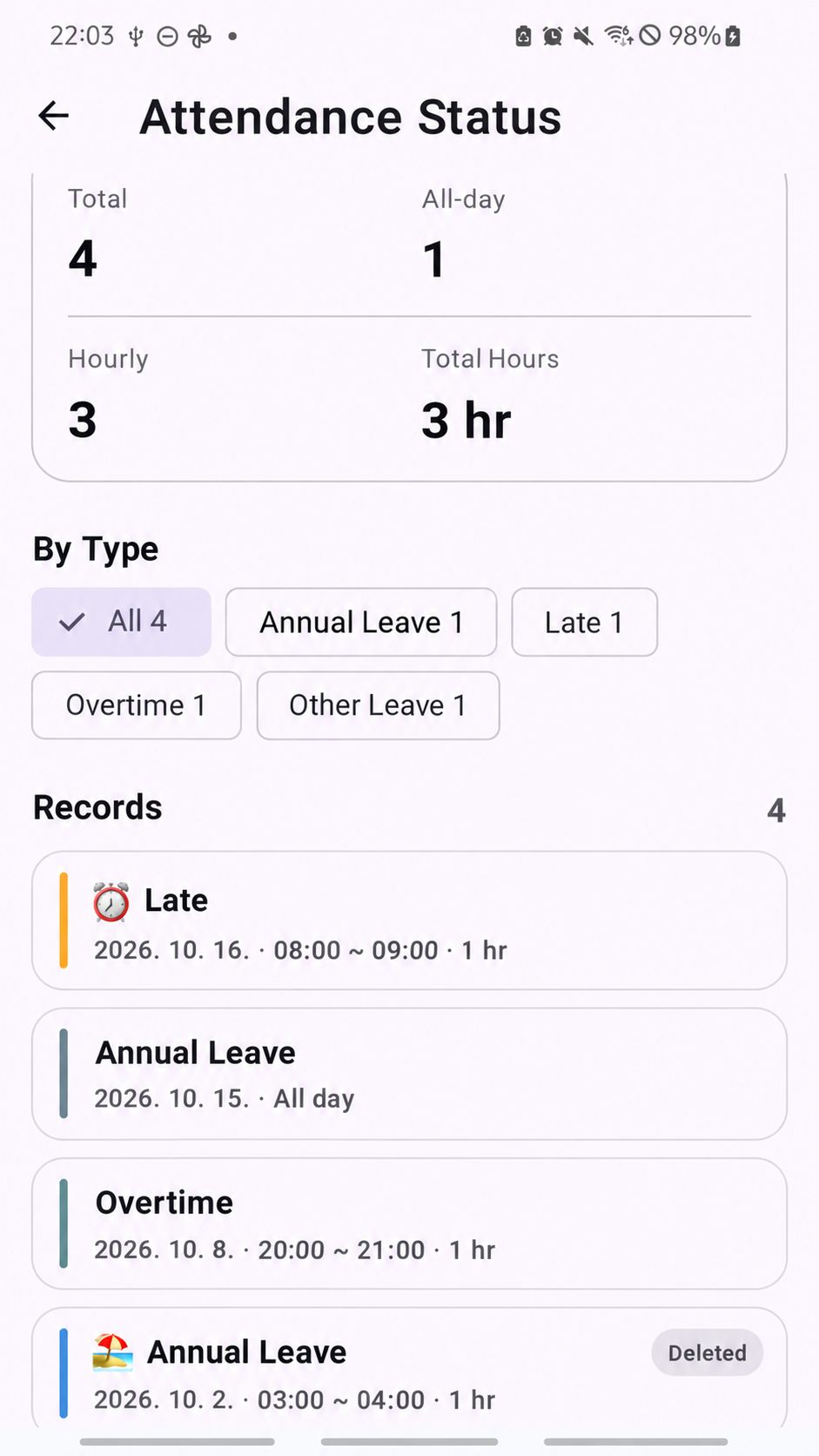
2. Manage time-off, lateness, and overtime Attendance records
In Attendance & Leave, you can check full-day or hourly Attendance, accumulated hours, and records by type. These are personal reference records, so compare them with official HR and payroll records.
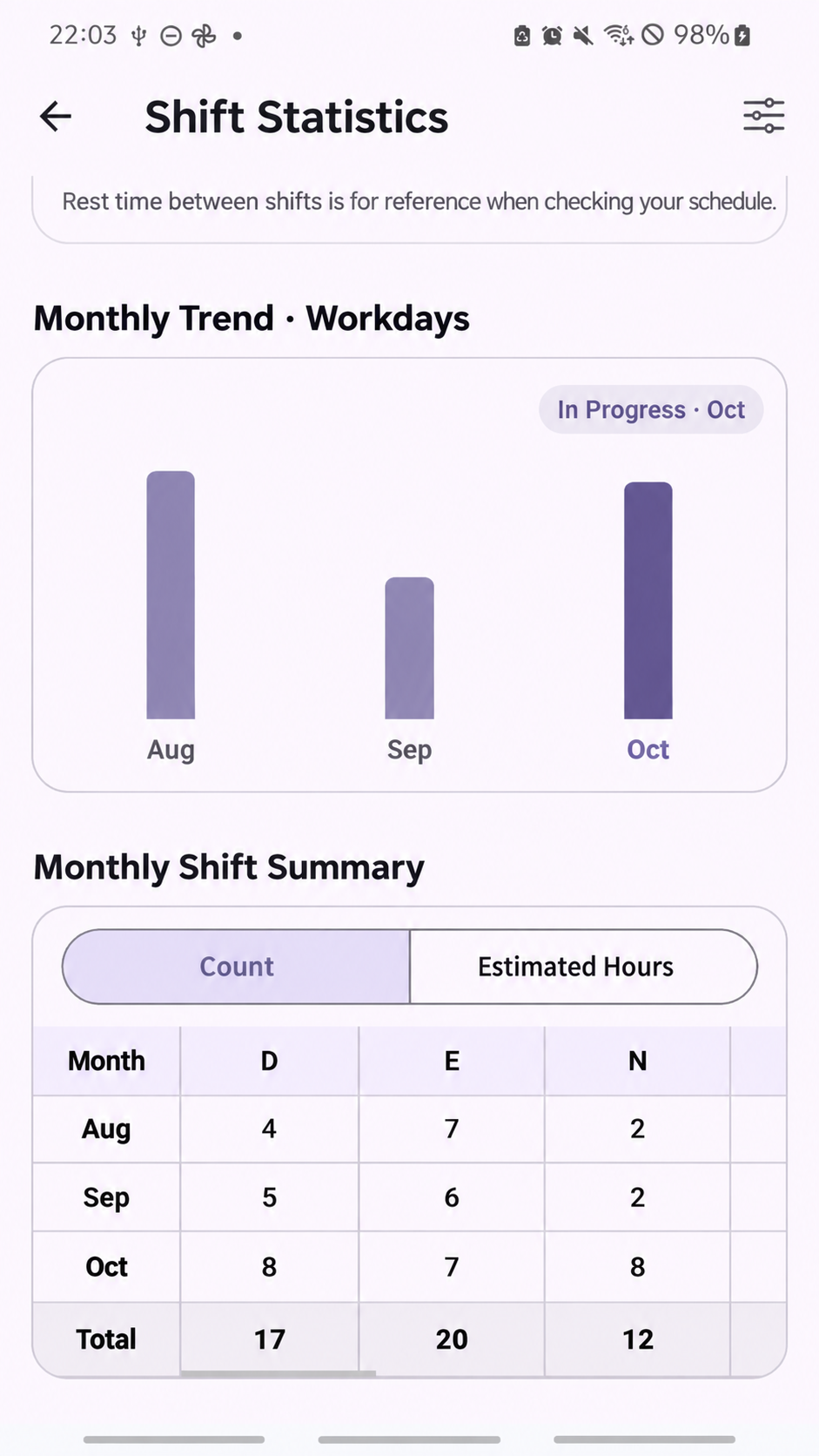
3. Analyze monthly patterns with Shift Statistics
In Shift Analysis, you can compare monthly workday trends, the number of D, E, and N shifts, and estimated hours. Keep these separate from actual payroll records.
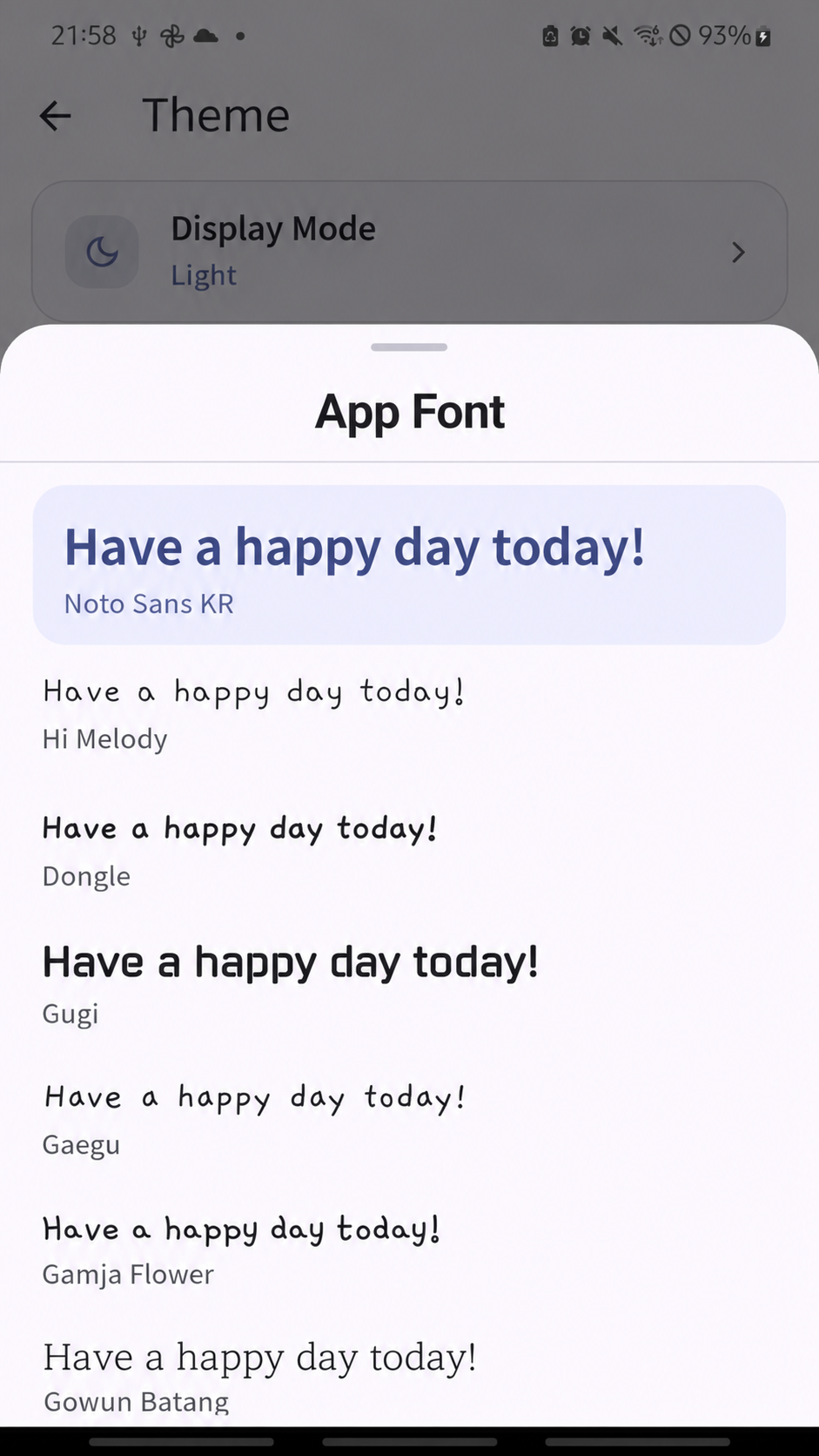
4. Different font lists by language
The app font list in Themes varies by language. Noto Sans KR, Hi Melody, and Dongle are examples shown on the Korean screen; the same fonts may not be available in other languages.
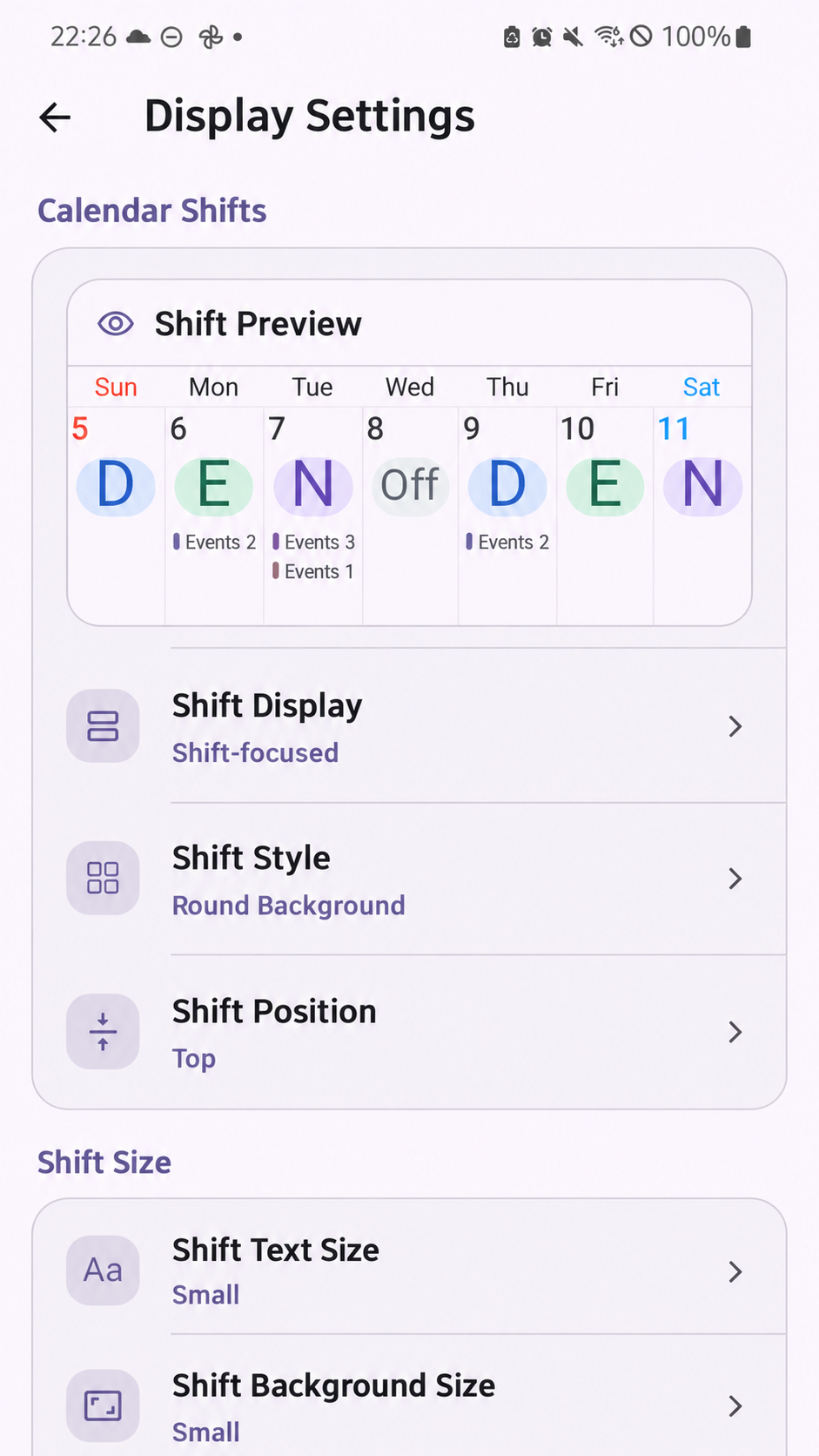
5. Customize the Shift Schedule screen
In display settings, you can adjust shift display, position, text size, and background size while previewing the screen.
Create a Shift Schedule that fits your schedule
Enter your shifts first, then organize emojis and Attendance records by date. Check monthly statistics and adjust the font and display size to create a Shift Schedule that works for you.
Features and font lists may vary depending on the language and platform used.
Adjust these options to keep your rotating work schedule readable and organized.
Read also: How to manage Work Alarm for shift work
View ShiftMate on the App Store · View ShiftMate on Google Play
Comments
Post a Comment