When choosing a nurse shift calendar app, look for a monthly shift view, custom shifts, personal plans, shift-based alarms, coworker sharing, widgets, multi-device support, and shift statistics. The right app makes your everyday tasks easier; it does not simply offer the longest feature list.
Nursing schedules rarely follow a standard Monday-to-Friday routine. Day, Evening, Night, and Off shifts rotate, while shift codes and start times vary between hospitals and units. Add appointments, training, annual leave, and notes, and a calendar designed for shift work can be especially useful.
If similar-looking apps appear in the App Store or Google Play, use these eight criteria to assess what fits your routine. This is a feature selection guide rather than a ranked comparison of apps.
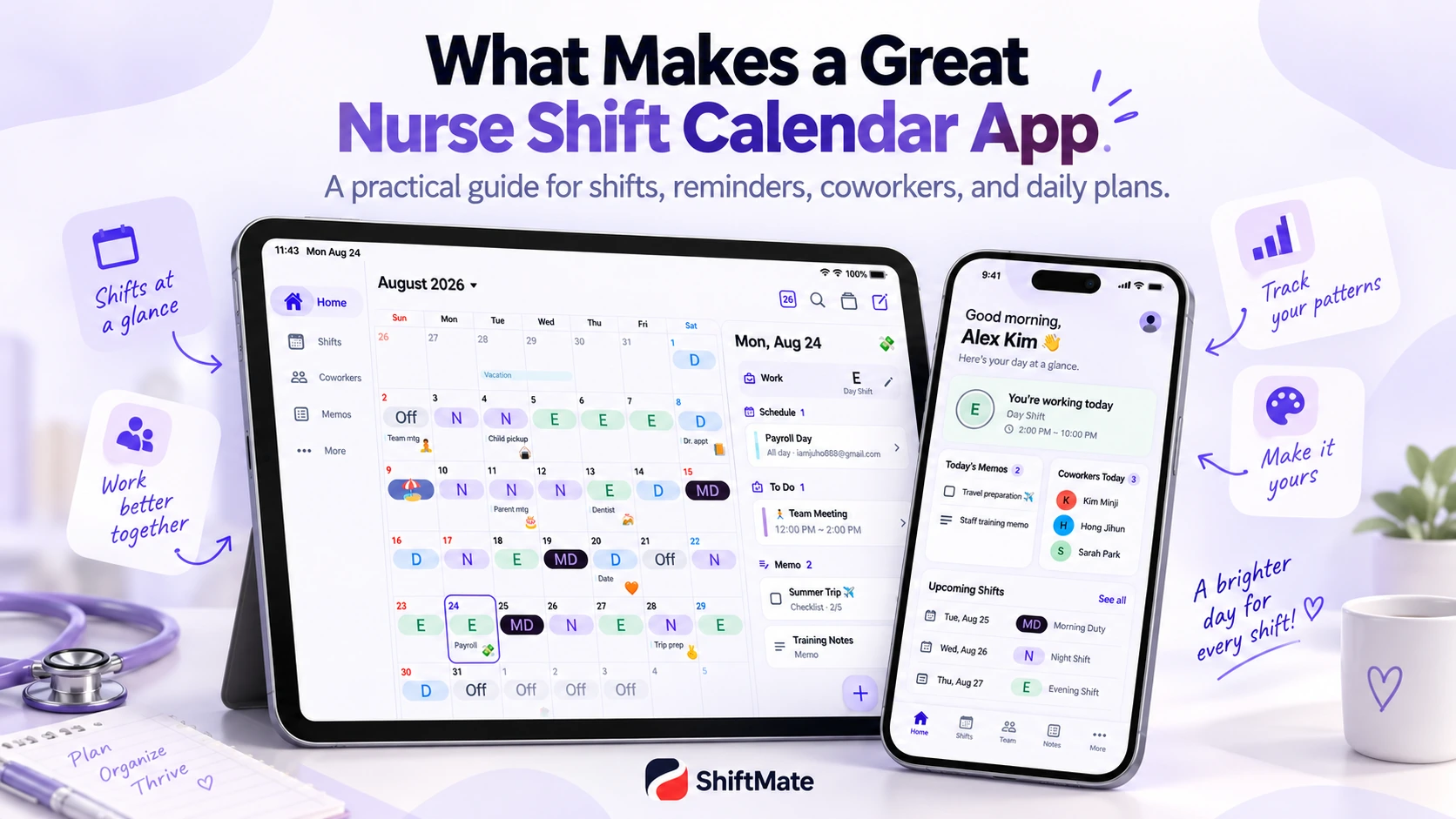
1. See your whole month at a glance
What matters most is how quickly you can understand your schedule. If you need to tap each date to see your shift, it is harder to spot the month's overall pattern.
Check whether the monthly view shows Day, Evening, Night, Off, annual leave, vacations, personal plans, training, and appointments together. Your next shift should also be easy to find.
Colors and shift codes help you spot consecutive night shifts, your next stretch of days off, and clashes between shifts and personal plans.
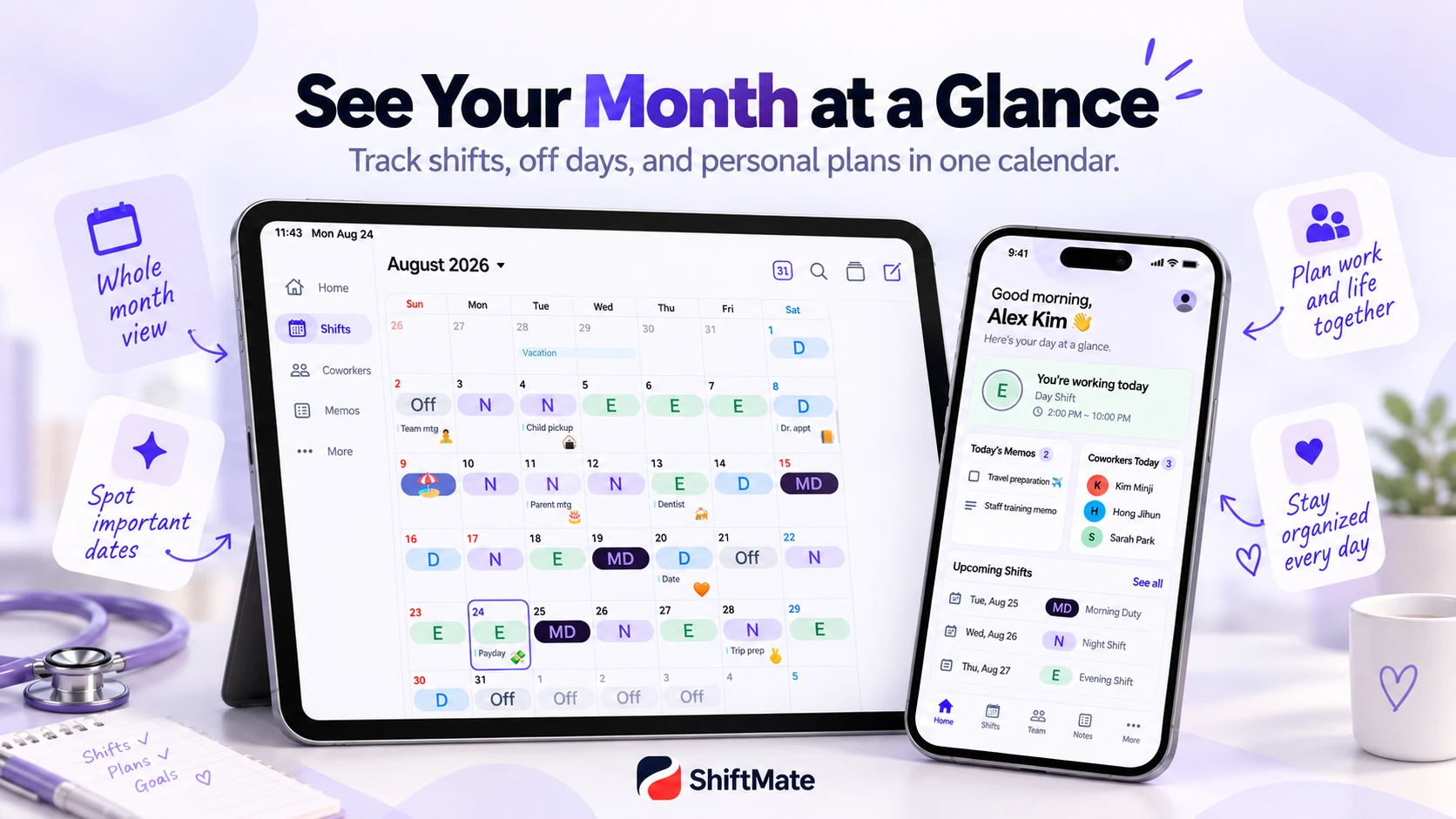
2. Create shifts that fit your hospital
Not every hospital uses only D, E, and N. Units may use other codes and shift types, such as MD, Training, or On-call.
Check whether you can add shift names and set start and end times. Custom colors, icons, and emojis can make your schedule easier to recognize.
The key is to choose an app you can adapt to your working environment, rather than having to reshape your routine around the app.
3. View work and personal plans together
Before meeting friends or booking an appointment, you usually check your shifts first. Work and personal plans are closely connected.
Look for a calendar that displays both while keeping them visually distinct. Simple codes such as D, E, and N for shifts, alongside titles or icons for personal events, keep one screen readable.
It should be easy to answer: “Am I working that day?”, “Do I have a night shift the next day?”, and “Can I make this appointment?”
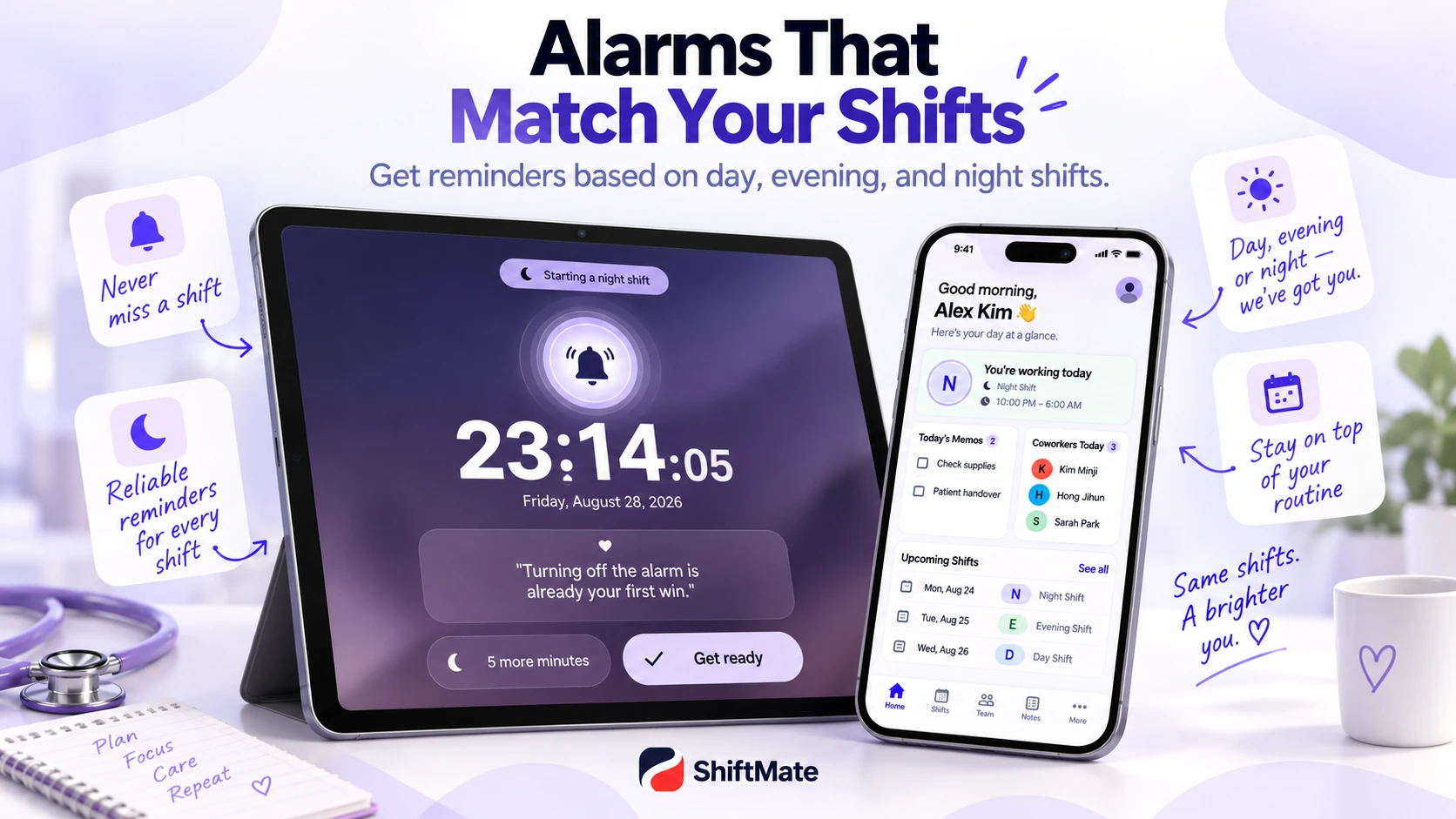
4. Check for alarms that match your shifts
Shift workers do not start work at the same time every day. A fixed alarm such as “6:30 a.m., Monday to Friday” can be awkward for a schedule like Day → Evening → Night → Off → Night.
Check whether work alarms can follow the start time of each shift. Linking alarms to Day, Evening, and Night shifts can reduce the need to change alarm times manually.
For an example of using alarms across devices, read dual work alarms on smartphones and tablets. Also check your device's notification permissions and alarm settings.
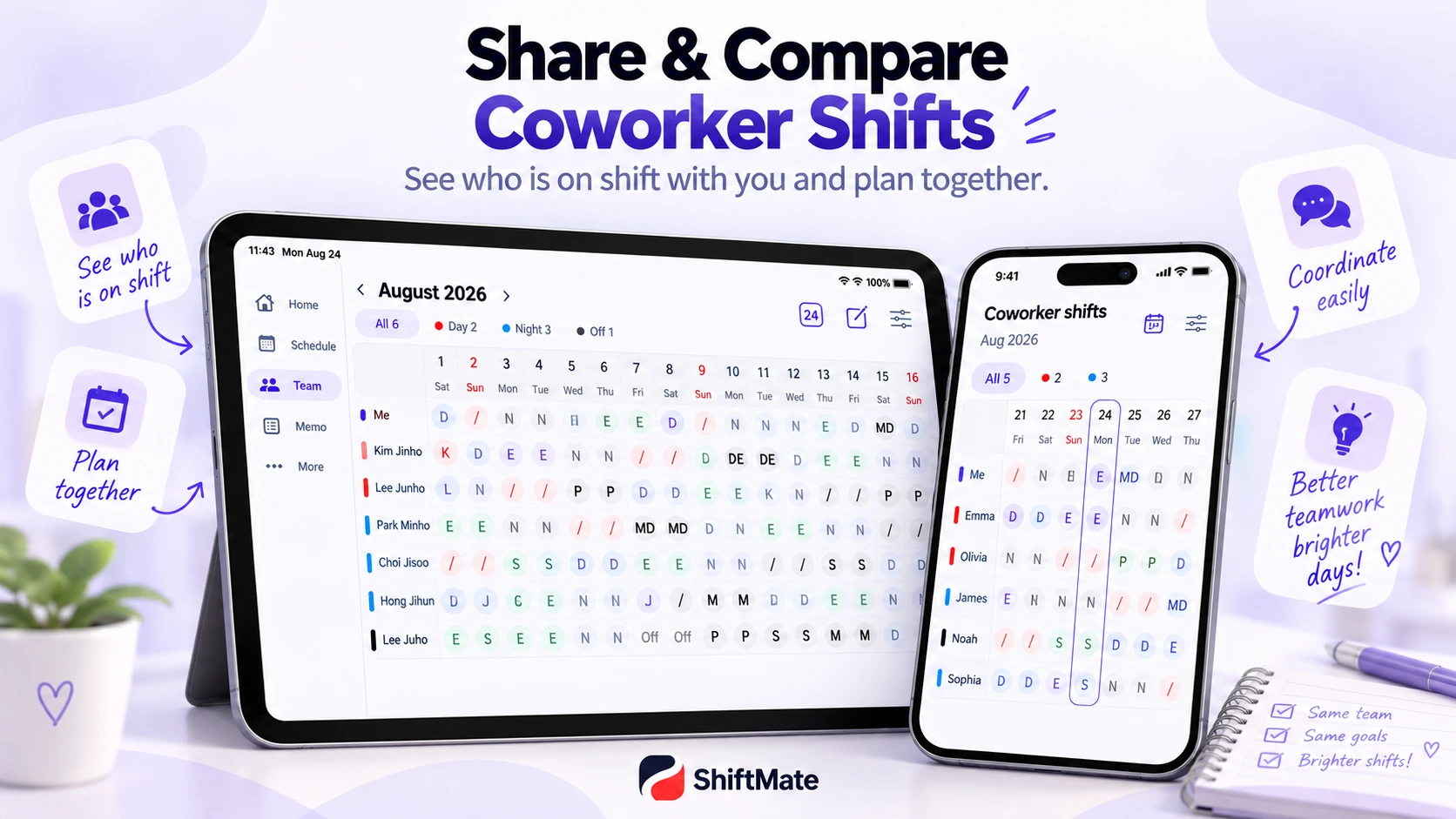
5. Consider coworker shift sharing
“Who is working nights with me today?”, “Who has the same day off next week?”, and “How can I show my family this month's schedule?” Shared schedules can help answer these questions and coordinate plans.
If you often share schedules with coworkers, check how sharing works and whether you can choose whose shifts appear. Viewing selected people may be more useful than displaying everyone at once.
6. Home-screen widgets matter more than you might expect
You may want to check today's shift, tomorrow's shift, your next day off, or this week's schedule without opening the app. Home-screen widgets are useful for these brief, frequent checks.
Look for the daily, weekly, or monthly view you need, and check whether your phone supports it. Widget types and features may differ between iOS, Android, and app versions.
7. Can you use it on a tablet too?
A phone is convenient for a quick check of today's shift. A tablet offers more room to review a full month alongside personal plans and notes.
If you also use an iPad or Android tablet, check whether the same account can access your shifts and which data syncs. Shift-data sync does not necessarily sync every device's alarms, permissions, or personal calendar settings.
Using your shift calendar on iPhone and iPad and planning shifts on a tablet's larger screen offer practical examples.
8. Look for useful shift statistics
Ever wondered how many night shifts you worked in a month? If you keep long-term records, monthly and yearly shift counts, night shifts, days off, and total work hours can be useful to review.
If consecutive workdays or shift patterns matter to you, check whether the app reports them. Available statistics and calculation methods vary between apps.
Eight things to check before choosing a nurse shift calendar app
- Monthly calendar: Can you understand the month's shift pattern quickly?
- Custom shifts: Can you create your hospital's or unit's shift codes and times?
- Personal plans: Can you see work and personal appointments in one calendar?
- Shift alarms: Can you set work alarms for each shift type?
- Coworker sharing: Can you see coworkers' schedules and who is working with you?
- Home-screen widgets: Can you check the shifts you need without opening the app?
- Multi-device support: Can you use the same shift calendar on your phone and tablet?
- Shift statistics: Can you review monthly and yearly shift patterns?
You do not need every feature. A basic calendar may be enough if you only record work dates. If alarms, sharing, notes, widgets, or a tablet are part of your routine, try those features before deciding.
How ShiftMate helps you manage shifts
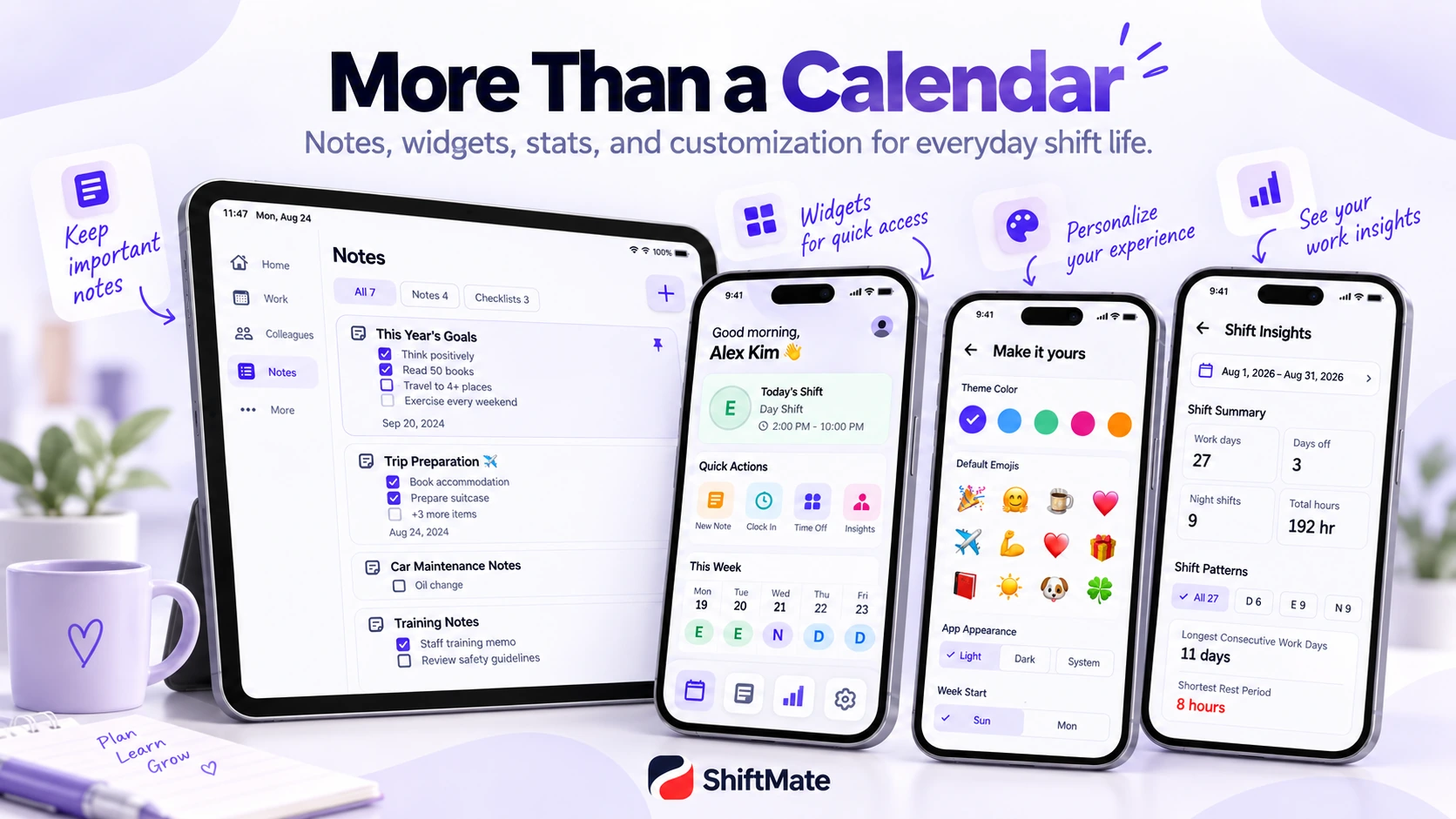
This is ShiftMate's official blog. ShiftMate is a scheduling app for nurses and shift workers. You can manage D, E, N, Off, and custom shifts in a monthly calendar alongside personal plans and notes.
Features include quick shift entry, shift-based alarms, coworker shift sharing, notes and checklists, shift colors and icons, and monthly and yearly shift statistics. ShiftMate supports iPhone, iPad, Android phones, and Android tablets, with supported shift data synced through the same account.
Details, including widgets and screen layouts, may vary by platform, device, and version. Check the features on your device. Coworker shifts are retrieved from the server when you open that screen or change the displayed month.
Choose an app that fits your routine
Look beyond design: how quickly can you enter shifts, see your whole month, and manage personal plans? Trying a few apps can help you identify the features that matter most to you.
A good shift calendar app makes your daily checking and scheduling a little easier.
Download ShiftMate
Visit your device's store to check features and compatibility, then get started with ShiftMate.
Comments
Post a Comment