A practical routine for keeping shifts, personal plans, and work alarms in one place.
A nurse’s month rarely follows a Monday-to-Friday routine. Day shifts, night shifts, weekends, and days off can change from one schedule to the next. Add training, appointments, and family plans, and a saved photo of your schedule can become difficult to manage.
You may find yourself checking tomorrow’s shift again, discovering that a dinner overlaps with work, or wondering whether you remembered to change your alarm.
The goal is simple: turn your work schedule into a calendar you can use every day. Here is a practical way to get started.
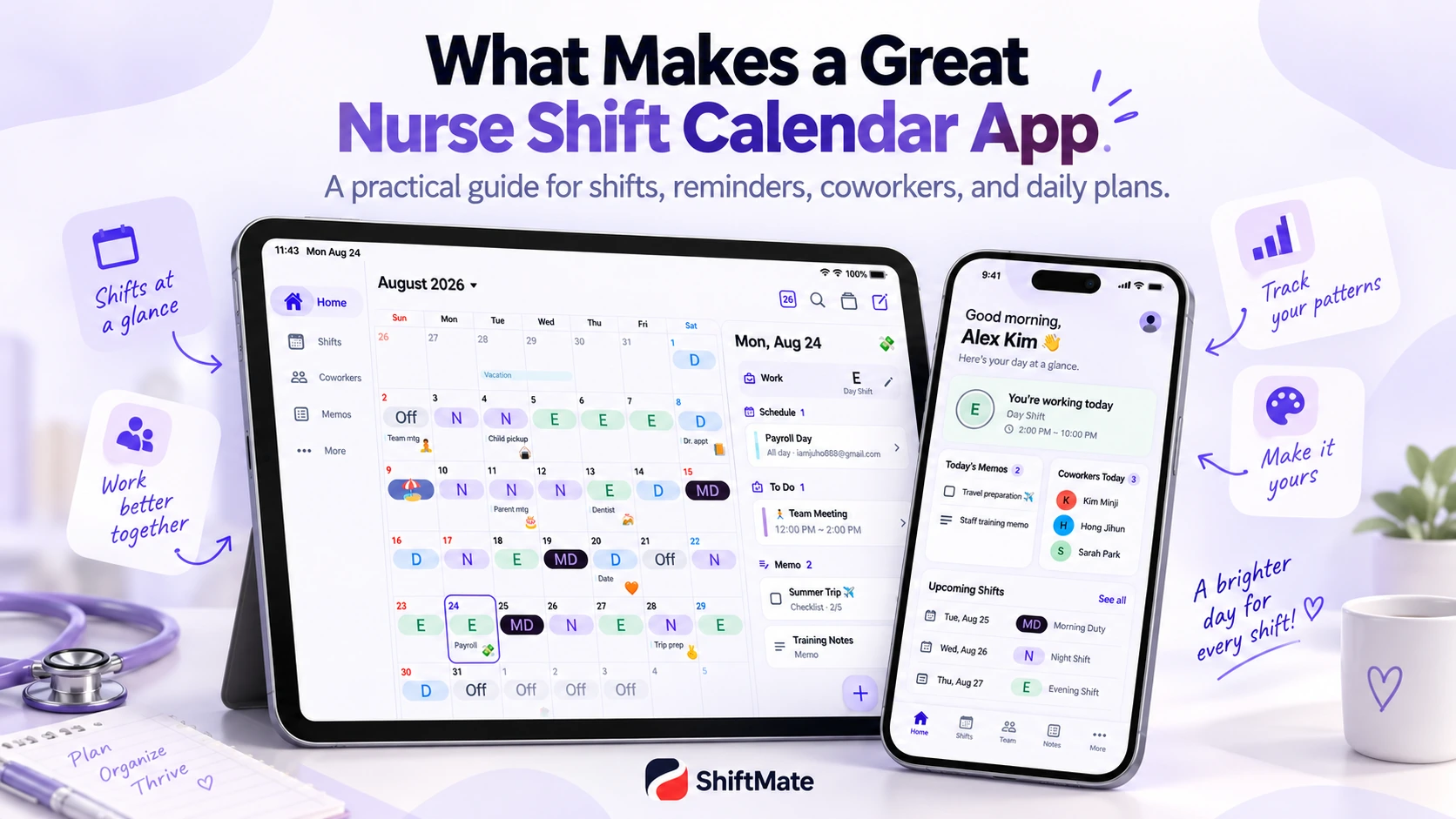
1. Enter your shifts when your new schedule arrives
Set aside a few minutes to enter the full schedule as soon as it is released. Include days off and leave, then compare your calendar with the original schedule before relying on it.
Use labels that match your workplace. For a unit using 12-hour shifts, your labels might be:
Day: 7:00 a.m.–7:00 p.m.; Night: 7:00 p.m.–7:00 a.m. the following day; Off: a scheduled day off; PTO: approved paid time off These are examples, not standard hours. If your unit uses 8-hour shifts, add Day, Evening, and Night instead. Use your actual shift times and include any special shift codes your unit needs. In ShiftMate, use the shift input screen to organize dates and shift types. When assigning the same shift to several dates, use the multiple-date input feature to reduce repeated work.
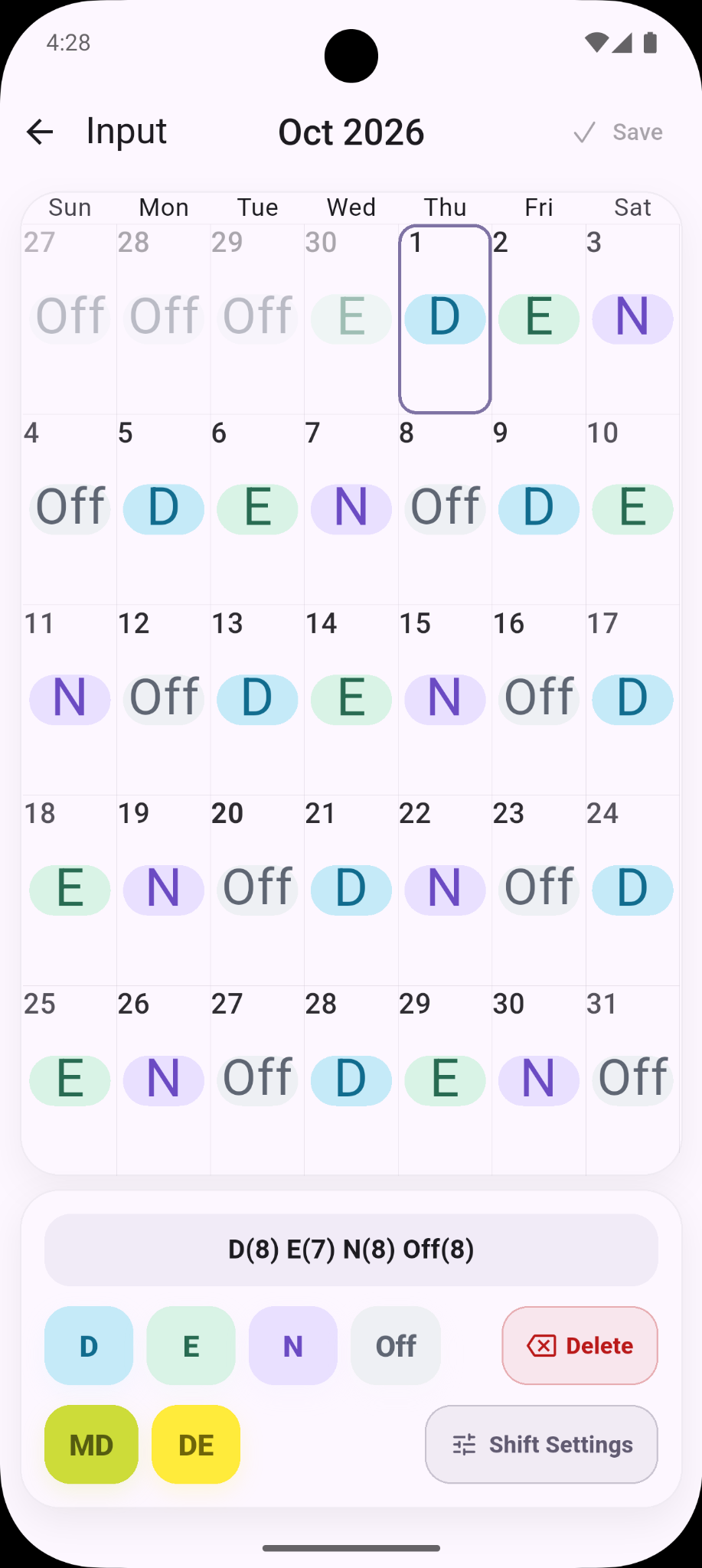
2. Give each shift a consistent color
Choose a color for each shift and keep it consistent. For example, use blue for days, purple for nights, and gray for days off. If you work evenings, give them a separate color.
Keep the shift label visible as well. Color helps you scan the month, while the label makes the meaning clear. You can then spot a run of nights or a stretch of days off without reading every date.
Still choosing a calendar? See eight features to look for in a nurse shift calendar app.
3. Add personal plans to the same calendar
Before accepting an invitation, it helps to see more than whether the date is marked Off. You may be finishing a night shift that morning or starting an early shift the next day.
Add appointments, family events, exercise, travel, and training beside your shifts. Short titles or familiar emoji can keep the calendar readable. For detailed plans, use a note or checklist rather than filling the monthly view with text.
If you prefer more room for monthly planning, explore using ShiftMate on iPhone and iPad.
4. Check the time around night shifts
A night shift crosses into the next day, so a date marked Off does not always mean you are free from the morning onward.
Review the start date, the following morning, and the time before your next shift. Keep your planned sleep and travel time in mind before adding appointments. When entering an overnight shift, check which date your workplace uses to identify it.
5. Set alarms around your actual shift times
A changing schedule makes a single weekday alarm less useful. Set the start time for each shift type, then choose an alarm time or reminder offset that allows for your own preparation and commute.
For example, a 7:00 a.m. start might require a 5:30 a.m. wake-up alarm. The shift start time and the alarm time serve different purposes.
After setup, check notification permissions and test the alarm on your device. Recheck your calendar and alarms whenever a shift changes.
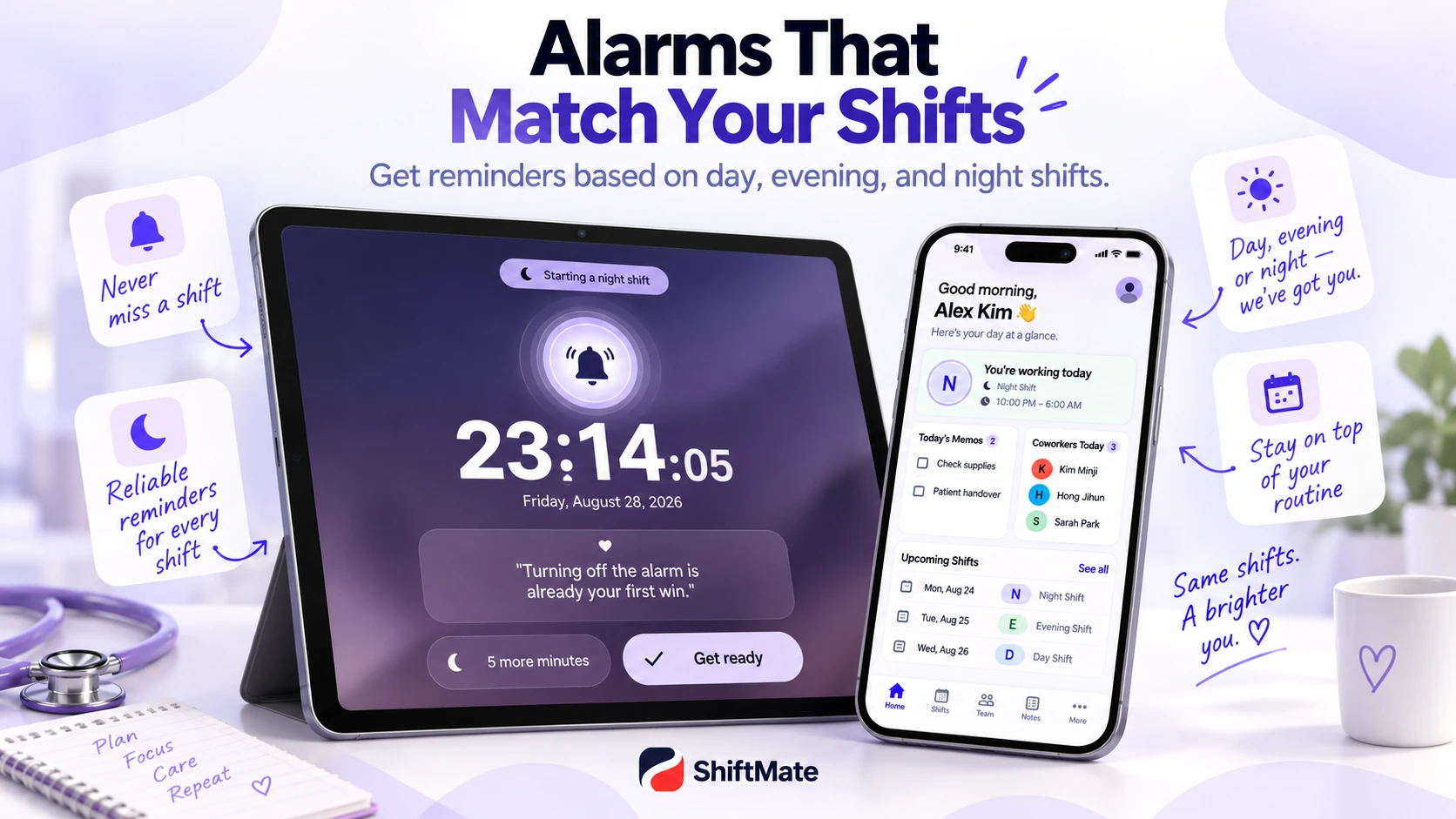
For a setup using more than one device, read about dual shift-work alarms on smartphones and tablets.
6. Make today’s information easy to find
The monthly calendar is useful for planning. During a busy morning, you may only need today’s shift, your next shift, the next day off, and any plans or notes for today.
Use ShiftMate’s home screen for a quick daily check, then open the full calendar when you need to plan ahead.
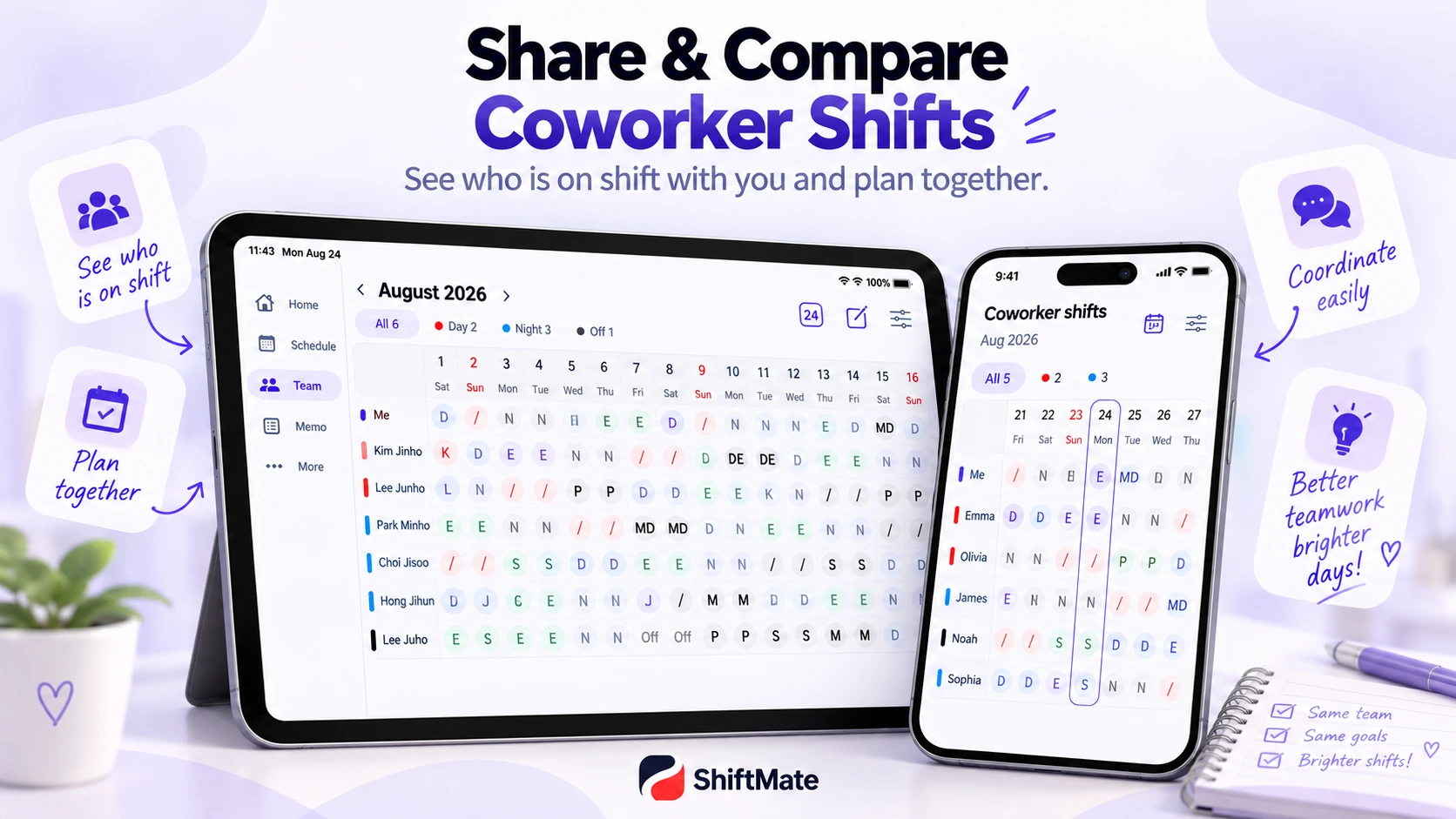
7. Show only the coworker schedules you need
Shared schedules can help you check who is working with you or find overlapping days off. Select the coworkers you want to see so the view stays readable.
If a shift swap is involved, follow your workplace’s approval process and update your personal calendar after the change is confirmed.
8. Use an Android home screen widget
On Android, ShiftMate’s daily, weekly, and monthly widgets let you check your schedule from the home screen. Choose the view you use most often and check that it reflects your latest changes.
On iPhone and iPad, use the in-app home screen and calendar for the checks described in this guide.
9. Review your shift pattern at the end of the month
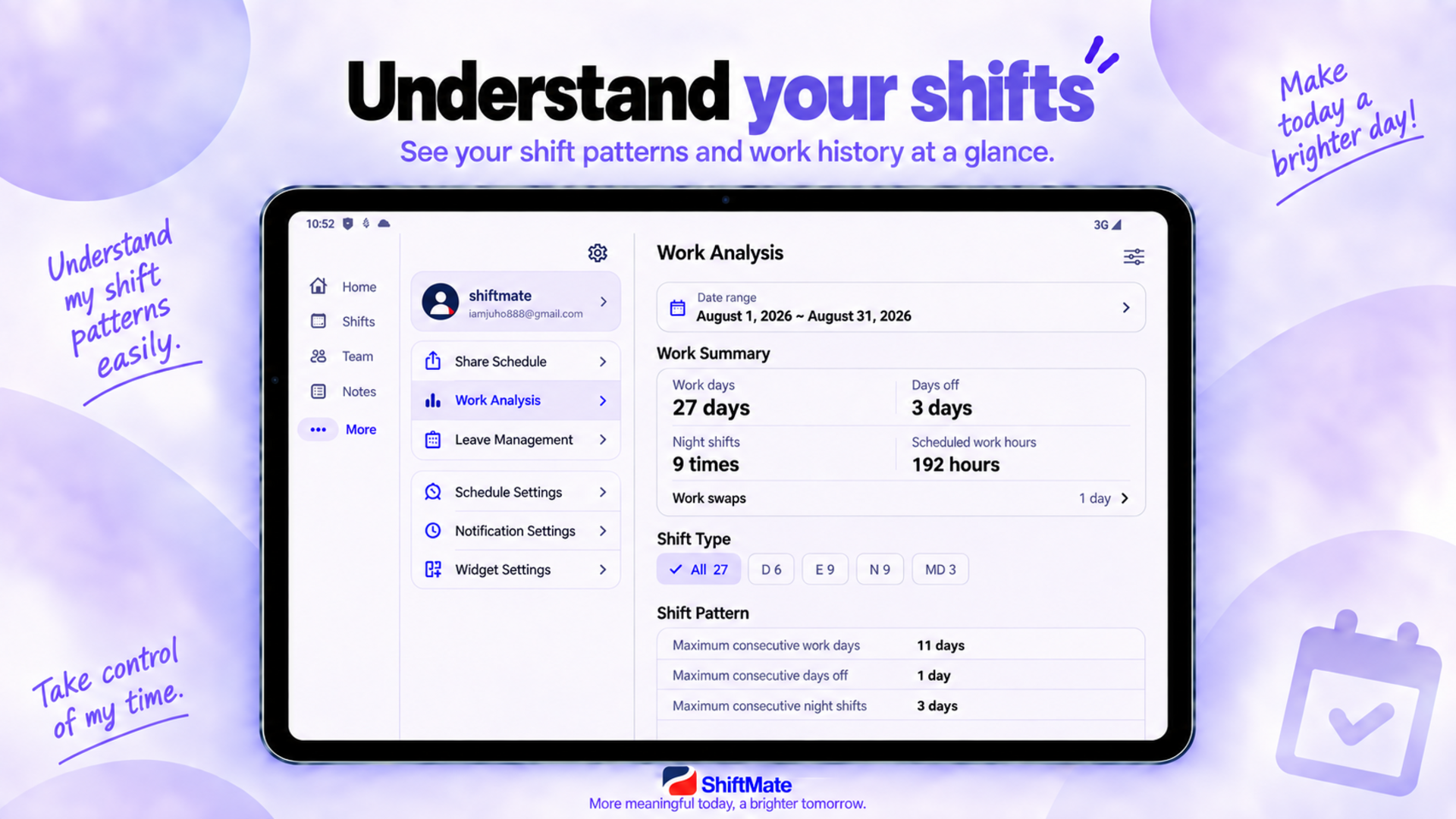
Look back at your day shifts, night shifts, and days off. Use shift statistics for counts and the calendar to review how shifts were spaced across the month.
This gives you a useful personal record to compare with your original schedule. When checking pay or attendance, refer to your employer’s official records.
A simple routine for every new schedule
- Enter the full schedule and check it against the original.
- Keep shift labels and colors consistent.
- Add important personal plans.
- Check the dates around night shifts.
- Review your work alarms.
- Use the home screen or an Android widget for daily checks.
- Update changes and compare coworker schedules when needed.
Organize your nursing shifts with ShiftMate
ShiftMate brings your shift calendar, personal plans, work alarms, coworker schedules, notes, and shift statistics into one app. Customize shift types and colors to match your unit, check today’s information on your phone, or use a tablet for a wider monthly view.
ShiftMate supports iPhone, iPad, Android phones, and Android tablets. Home screen widgets described above are available on Android.
Start with your next schedule. Enter your shifts, add the plans that matter, and make the information you check every day easier to find.
Get ShiftMate
Plan your shifts and your life in one place.
Comments
Post a Comment